Sunday, 4 January 2015

Windows Run Commands


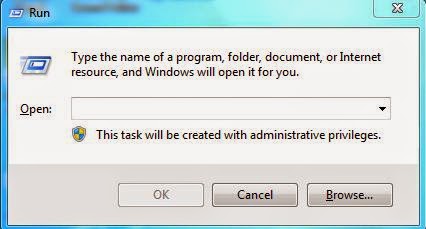
You can use Run command to open any program, file etc. Here I am summarizing most run commands for you hope this will help you...

Command                                                                  Action

Calc                                                                            Calculator
firefox                                                                         Mozilla Firefox
iexplore                                                                       Internet Explorer
winword                                                                      Microsoft Word
excel                                                                            Microsoft Excel
powerpnt                                                                     Microsoft Powerpoint
outlook                                                                        Microsoft Outlook
notepad                                                                        Notepad
write                                                                             Wordpad
control                                                                          Control Panel
logoff                                                                            Logoff
regedit                                                                           Registry Editor
taskmgr                                                                         Task Manager
%programfiles%                                                           Program Files
osk                                                                                 On Screen Keyboard
magnify                                                                         Magnifier
telnet                                                                             Telnet
mstsc                                                                             Remote Desktop
msra                                                                              Remote Assistance
charmap                                                                        Character Map
hdwwiz.cpl                                                                    Add Hardware Wizard
appwiz.cpl                                                                     Add Remove Programs
control admintools                                                        Administrative Tools
wuapp                                                                            Windows Update
timedate.cpl                                                                   Date/Time
desk.cpl                                                                          Display Properties
control folders                                                                Folder Properties
fonts                                                                                Fonts Folder
inetcpl.cpl                                                                       Internet Properties
control keyboard                                                            Keyboard Properties
control mouse                                                                 Mouse Properties
ncpa.cpl                                                                          Local Area Connection
powercfg.cpl                                                                  Power Configuration
control printers                                                               Printers & Faxes
intl.cpl                                                                            Regional Settings
wscui.cpl                                                                        Security Center
lusrmgr.msc                                                                   Local Users & Groups
firewall.cpl                                                                     Windows Firewall
compmgmt.msc                                                              Computer Management
devmgmt.msc                                                                 Device Manager
cleanmgr                                                                         Disk Cleanup Utility
dfrgui                                                                              Disk Defragmenter
diskpart                                                                           Disk Partition Manager
diskmgmt.msc                                                                Disk Management
sigverif                                                                            Signature Verification Wizard
perfmon                                                                          Performance Monitor
services.msc                                                                    Services
fsmgmt.msc                                                                     Shared Folders
msconfig                                                                         System Configuration Utility
utilman                                                                            Ease of Access
syskey                                                                              Windows System Security Tools
%homepath%                                                                  Home Directory
appdata                                                                             Application Data
%homedrive%                                                                 Windows Home Drive
%temp%                                                                           Temporary Folder
%systemdrive%                                                               Windows Root Drive
%systemroot%                                                                 Windows Root Directory
%windir%                                                                        Windows Root Directory
 documents                                                                        Documents Folder
videos                                                                                Videos Folder
downloads                                                                         Downloads
favorites                                                                             Favorites
recent                                                                                 Recent Folder
pictures                                                                              Pictures Folder
netplwiz                                                                             Advanced User Accounts
sdclt                                                                                    Backup & Restore
fsquirt                                                                                 Bluetooth File Transfer
certmgr                                                                               Certificates
perfmon                                                                              Performance Monitor
charmap                                                                              Character Map
colorcpl                                                                              Color Management
displayswitch                                                                     Connect to a Projector
shrpubw                                                                              Create A Shared Folder Wizard
recdisc                                                                                 System Repair Disk
msdt                                                                                     Support Diagnostics
dxdiag                                                                                  DirectX Diagnostics Tool
cleanmgr                                                                              Disk Cleanup
dpiscaling                                                                             Display
dccw                                                                                     Display Color Calibration
verifier                                                                                  Driver Verifier Manager
eventvwr.msc                                                                        Event Viewer
fontview                                                                                Font Viewer
joy.cpl                                                                                   Game Controllers
gettingstarted                                                                         Getting Started
gpedit.msc                                                                             Group Policy Editor
secpol.msc                                                                             Local Security Policy
mip                                                                                        Math Input Panel
mmc                                                                                       Microsoft Management Console

Saturday, 3 January 2015

How to Convert FAT File System to NTFS File System

FAT फाइल सिस्टम को NTFS में बदलना
Step1:- Open CMD Prompt with Admin priviledge.

Step2:- Suppose you want to convert your E: Drive then type the following Command.

CONVERT  E: /FS:NTFS
 

Note:- Converting FAT32 into NTFS is easy and safe, but converting NTFS to FAT32 will wipe out all your data and programs on that specific partition.
But if you want to convert NTFS into FAT32 you can use EASUS PARTITION MANAGER
if you want this click here

How to Know Motherboard Manufacturer and Chipset Number...


अपने मदरबोर्ड का निर्माता तथा चिपसेट नम्बर जानें।

Step 1:
Press Windows + R After run window will appear as Shown Below


In The Run Window  Type 'dxdiag'
Step 2: Note Down Your System Manufacturer & System Model as Shown Below
 Hope This Will Help You................
You can also view System Information By Typing the following command in Run Dialog box...
And you will get detailed system information.

Thank You for your valuable visit.

Friday, 2 January 2015

How To Change Default Boot Entry With BCDEDIT Command...


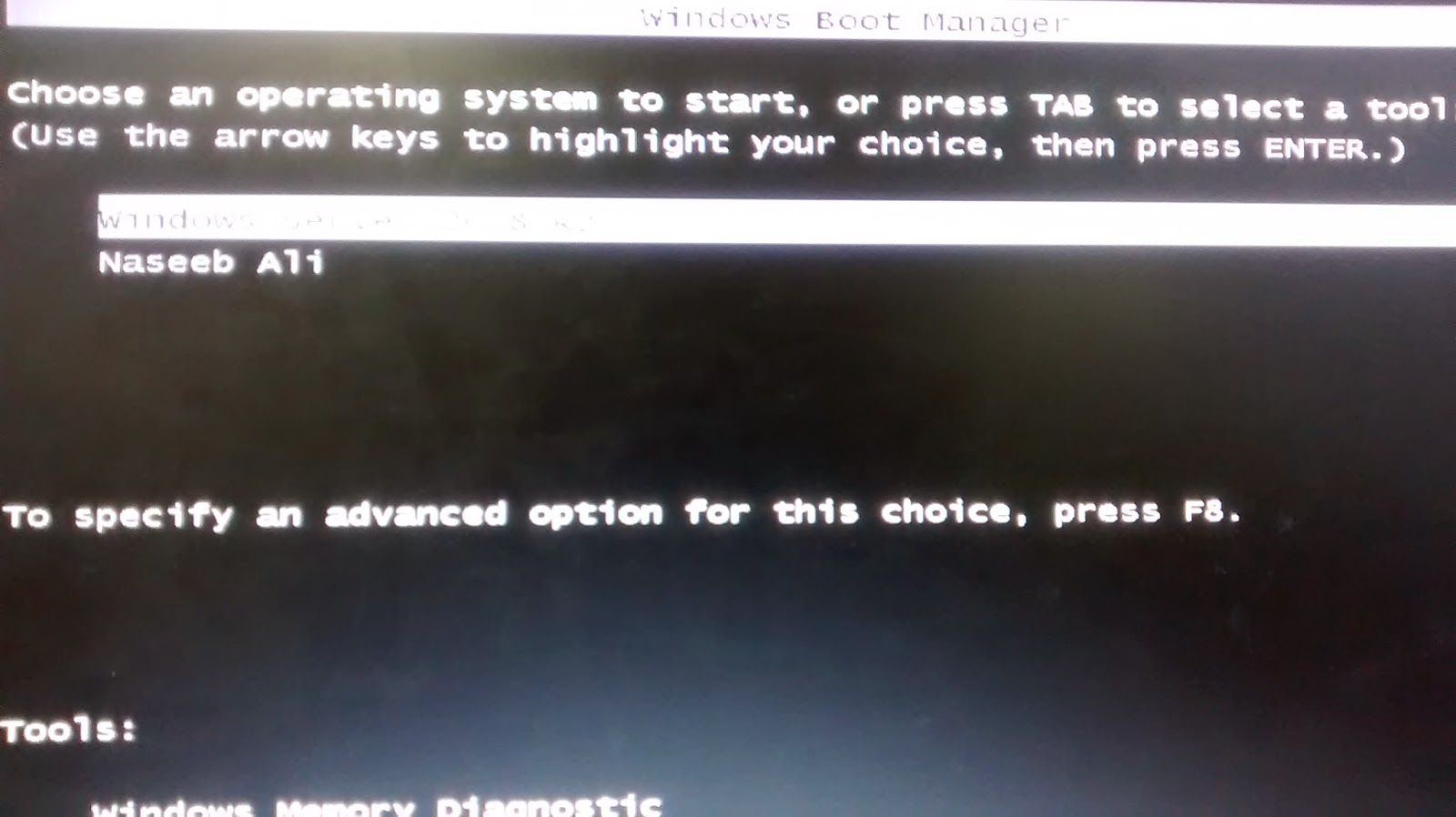
In dual boot machine when we start the system it shows the list of both operating system at the time of booting like this.
if you want to change these entries, you can perform by following the below steps:-

Step1:- check for dual booting by using msconfig command in run.
it will open system configuration utility where you can see two entries for dual boot machine.


Step2:- Open Cmd prompt with admin priviledge and run the following command

bcdedit /set {current} description "Naseeb Ali"


And your task has been completed successfully.

Thanks for your visit.

How to Block Websites By Editing the HOSTS File in Windows

How to Block Websites By Editing the HOSTS File in Windows

DNS, which stands for Domain Name System, can convert the elusive IPv4 or IPv6 addresses to meaningful names, and then translate the characters back to IP addresses. For example, when you want to visit a website, DNS will tell your web browser the real ip add of it and then web browser will download the web page directly from that IP address.
As you may expect, the process of translating IP addresses to website names will consume some time, which could cause access delay. Particularly, if the DNS servers are down, you will not be able to visit most websites through their URL, which isn’t uncommon.

Hence, it is necessary to make a list for mapping hostnames to IP addresses. That is what Windows HOSTS file does. On most Windows systems, the HOSTS file content is used preferentially over other methods, such as the DNS.
With the proper use of Windows HOSTS file, you can accelerate the access speed of favorite websites, test a website locally and even selectively block certain websites.

In fact, blocking websites through the HOSTS file is an effective way to do it because it blocks it across all the browsers.

This article has some tips to manage the HOSTS file and block websites with it.

Edit HOSTS File Manually
Windows NT platform systems including Windows 2000, Windows XP and Windows 7 have their HOSTS file in the path %SystemRoot%\system32\drivers\etc\ (“%SystemRoot%” is relative path, which depends on the system-wide environment variable, it should be C:\Windows or C:\WINNT in most cases).
Basically, you just need to type the above mentioned path in Windows search bar (or run box) to get to the “etc” folder where you’ll find the HOSTS file.

You can use any text editor to open the file and edit it manually.
Note: For Windows 7 users, there’s one more step. Type “Notepad” in Start Menu search bar, and then right click on the “Notepad” item, choose “Run as administrator”. Now you can open HOSTS file with “File -> Open” menu in notepad
The HOSTS file contains lines of text including an IP address and one or more hostnames. You can add the mapping relationship of each websites. The comment lines are indicated by a hash (#) character, which will be ignored by system.


To block a website, simply add a line like this:
127.0.0.1 example.com
127.0.0.1 (or Localhost) is the standard hostname given to the address of your computer. You mapped the website name to your PC, hence you can’t visit the site any more. So if you want to block Facebook, just add this line: 127.0.0.1 facebook.com